How to Refill a PaperPro Stapler – Quick Guide
Is your PaperPro stapler jamming or refusing to fire? Chances are it is simply out of staples or loaded incorrectly. Refilling a PaperPro stapler is quick and intuitive once you know the right steps. Designed with One-Finger technology, these staplers make reloading nearly effortless, but correct staple orientation is critical. Whether you are using an Evo Desktop, Generation II, Quantum, or Prodigy model, the refill process follows a consistent pattern across the PaperPro line. In this guide, you will learn how to open the magazine, insert staples the right way, and lock everything back securely, avoiding jams and misfires. You will also discover model-specific tips, common mistakes to avoid, and how to test your stapler after reloading.
Access the Staple Magazine
Flip your PaperPro stapler upside down so the base faces upward. This exposes the staple-loading mechanism and prepares it for refill. Most models require this step to access the magazine safely. Keep the stapler steady on a flat surface to avoid accidentally pressing the trigger.
Open the Base or Slide Out the Magazine
Depending on your specific PaperPro model, use one of these methods to access the magazine:
• Evo Series (Evo Desktop, Evo LX, Evo Compact): Lift the front edge of the base and slide it forward to expose the magazine.
• Generation II, Quantum, Prodigy, Desktop, Compact: Pull the front of the base away from the body to extend the magazine.
• Spring-powered models with black tab: Locate the black sliding tab at the rear or side and pull it backward to release the magazine.
You should now see the empty or partially filled staple track ready for reloading.
Load Staples Correctly
This is the most important section when learning how to refill a PaperPro stapler. Proper staple orientation prevents jams and ensures smooth operation every time you staple.
Insert Staples Point Up, Flat Side Down
Follow these guidelines exactly when loading staples into your PaperPro stapler:
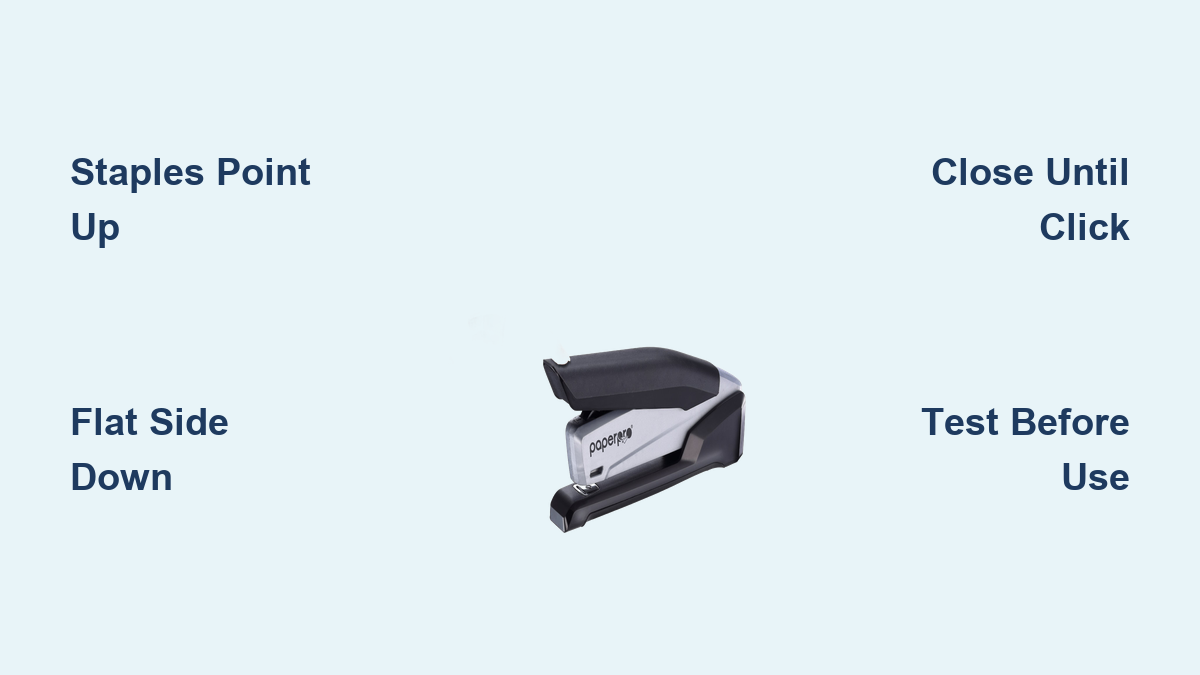
• Correct orientation: Staples go in with points (legs) facing up and the flat crown side facing down into the magazine.
• Incorrect orientation: Do not insert staples upside down with the crown up and points down, as this causes jams and misfeeds.
Use a full strip of standard 26/6 or 24/6 staples unless your model specifies otherwise. Align the first staple with the feed mechanism to ensure smooth advancement through the magazine.
Push Staples Into Position
Gently press the staple strip into the magazine until it lies flat and fully seated. Avoid forcing or bending the staples. The spring-loaded follower will compress automatically as you insert them. Make sure the strip feeds freely toward the front of the stapler. If you encounter resistance, stop and check the orientation before proceeding.
Close and Secure the Magazine
After loading staples, you must properly secure the magazine to ensure your PaperPro stapler works correctly.
Slide Base Back Until It Clicks
Return the magazine to its closed position using the appropriate method for your model:
• Slide-open models: Push the base or magazine back into the stapler body until it clicks securely into place.
• Tab-operated models: Slide the black tab forward until it locks.
The audible click confirms the magazine is properly seated and the internal mechanism is engaged. Do not skip this step, as an unclosed magazine leads to misfires.
Check for Gaps or Misalignment
Inspect the base edges after closing. If any gaps appear or the base feels loose, reopen and reseat the magazine. An improperly closed magazine causes inconsistent stapling and potential damage to the feeding mechanism. Run your finger along the seam to verify a tight seal.
Model-Specific Refill Tips
Understanding your specific PaperPro model makes the refill process even faster. Here is what you need to know for each variant.
Evo Series: Easy Slide-Open Design
The Evo series includes Evo Desktop, Evo LX, and Evo Compact models. To refill these staplers, lift and slide the front base forward to open. Load staples with points facing up. Close by sliding the base back until you hear a solid click. These models are among the fastest to reload, making them ideal for high-volume environments where quick turnaround matters.
Generation II, Quantum, Prodigy: Flip-Open Convenience
These models feature a flip-open magazine design. Pull the base forward to flip open the magazine and expose the staple track. Use any built-in visual guides to confirm staple alignment. No tools are required, as these staplers are designed for tool-free, frequent reloading. They are common in office settings due to their durability and speed.
Spring-Powered (Bostitch Office Line): Black Tab Operation
Find the black sliding tab on the side or rear of the stapler. Pull back to open the magazine, insert staples with points facing up, then push the tab forward to lock the magazine in place. These models emphasize low-force operation, perfect for users with limited hand strength who still need reliable stapling power.
Avoid Common Loading Mistakes
Learning how to refill a PaperPro stapler correctly means knowing what NOT to do. These mistakes cause most of the problems users experience.
Do Not Load Staples Upside Down
The number one cause of jams is inserting staples with the crown facing up. Always double-check that the flat side touches the bottom of the magazine and the points face upward. If your stapler is not firing, this is the first thing to inspect. Take a moment to verify orientation before reloading.
Never Force the Magazine Closed
If the base does not slide shut smoothly, do not force it. Open it again and check for bent staples or debris in the magazine. Realign the staple strip and try closing it again. Forcing the magazine closed can damage the spring mechanism or misalign the feed system, leading to costly repairs.
Do Not Skip the Click Test
The click is not just feedback; it is functional confirmation that the magazine is properly seated. Without it, the stapler may not engage the driving mechanism correctly. If you do not hear or feel a click, reopen and reseat the magazine completely. This simple step prevents most operational issues.
Test After Refilling
Always test your PaperPro stapler before returning to regular use. This ensures everything works correctly and catches any issues before they cause problems.
Do a Trial Staple
Before starting a big stapling job, test the stapler on 5 to 10 sheets of paper. Watch for smooth staple ejection and proper crown formation. The staple should close neatly on the back of the paper stack. Also check for double-firing or misfeeds, which indicate a problem with loading. If the staple does not form correctly, reopen the magazine and verify orientation.
Clear Jams Immediately
If a jam occurs despite your best efforts, follow these steps to clear it:
- Flip the stapler upside down
- Open the magazine carefully
- Remove any bent or stuck staples using tweezers or pliers
- Reload with a fresh strip, ensuring points face up
- Close securely and retest before continuing
Maintenance and Longevity Tips
Regular maintenance keeps your PaperPro stapler working like new for years. These simple practices extend the life of your stapler significantly.
Clean the Magazine Monthly
Dust and paper fragments build up over time and cause feeding problems. Every few weeks, open the magazine and use a dry brush or compressed air to clean the track. Inspect for rust or damage while cleaning. A clean magazine ensures reliable staple feeding and prevents premature wear on internal components.
Use Recommended Staples Only
Stick to standard 26/6 or 24/6 staples unless your model specifies long-crown or heavy-duty variants. Off-brand or non-standard staples may be too thick, too thin, or too stiff, leading to jams or internal damage. Using the correct staples is one of the easiest ways to maintain optimal performance.
Store Properly When Not in Use
Keep your PaperPro stapler in a dry, flat location away from moisture and humidity. Avoid stacking heavy items on top of the stapler, which can depress the spring mechanism and reduce performance over time. Proper storage maintains the spring tension needed for One-Finger operation.
Final Readiness Check
Before returning to work, confirm these four things:
• Base is fully closed and clicked into place
• Staples are loaded with points up and flat side down
• No visible debris or bent staples in the magazine
• Test staple forms correctly on paper
Once all checks pass, flip the stapler right-side up and resume stapling with confidence. Your PaperPro stapler is now fully loaded and ready for efficient, one-finger stapling across everyday office tasks.
Frequently Asked Questions About Refilling a PaperPro Stapler
What type of staples does a PaperPro stapler use?
PaperPro staplers typically use standard 26/6 or 24/6 office staples. Check your specific model manual for any variations, as some heavy-duty or long-reach models may require different staple sizes.
Why does my PaperPro stapler keep jamming after refilling?
The most common cause is loading staples upside down. Always ensure the pointed ends face upward and the flat crown side faces down in the magazine. Also check that the magazine clicked fully closed.
How do I open the magazine on my Evo model?
Flip the stapler upside down, then lift and slide the front base forward. This exposes the staple track for loading. Slide the base back until you hear a click to close.
Can I use generic staples in my PaperPro stapler?
Yes, as long as they are standard 26/6 or 24/6 size. However, low-quality staples may cause more jams. Stick to reputable brands for reliable performance.
How often should I clean my PaperPro stapler magazine?
Clean the magazine every few weeks with a dry brush or compressed air. More frequent cleaning may be needed in high-dust environments or with heavy daily use.
What does the click mean when closing the magazine?
The click indicates the magazine is fully seated and locked in place. Without this click, the stapler may not fire correctly. Always verify you hear and feel the click before using the stapler.
Key Takeaways for Refilling Your PaperPro Stapler
Refilling a PaperPro stapler takes less than a minute when done correctly. The most critical factor is staple orientation: always load staples with points facing up and the flat crown side facing down. This single step prevents approximately 90% of common stapler problems. Remember that the audible click when closing the magazine is not optional; it is functional confirmation that the mechanism is properly engaged. For model-specific differences, Evo series staplers use a slide-forward base, while Generation II and Quantum models use a flip-open design. Spring-powered models feature a black tab that locks the magazine in place. By following these guidelines, your PaperPro stapler will deliver reliable, one-finger stapling performance for everyday office tasks, presentations, and high-volume projects.